Importing from CSV
Backfill your timeline with historical events from a spreadsheet using the four-step import wizard.
A logbook is far more useful when it starts with history instead of a blank page. If you've kept a record of past launches, incidents, or campaigns in a spreadsheet, the CSV importer brings them in.
The wizard
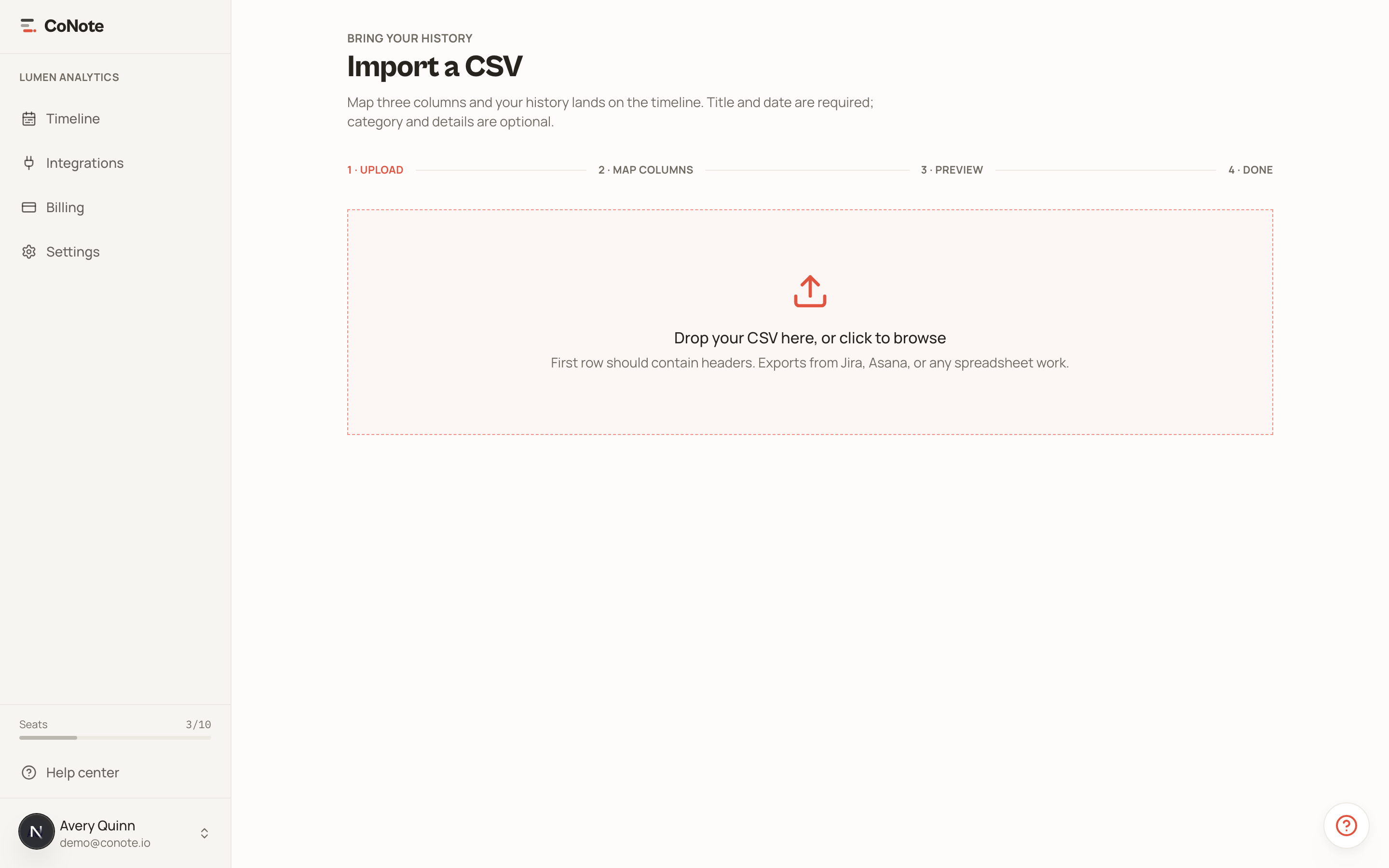
Importing runs through four steps:
Upload your file
Export your records as a CSV and upload it. Each row becomes one note.
Map the columns
CoNote auto-detects common headers (date, title, category) and matches them to note fields. Adjust any mapping it didn't get right.
Review
Preview how your rows will look as notes before anything is written, so you can catch a mis-mapped column early.
Import
Confirm, and the notes land on your timeline, dated to their original event dates.
Preparing your file
For the cleanest import, give each row at least a title, an event date, and a category. Dates should be real event dates — the importer places notes in history where they belong, not at today's date.
Imported notes carry a "CSV import" source label, so you can always tell backfilled history apart from events captured live.
Importing counts toward your plan's note limit. If you're on the Free plan and importing a large history, you may hit the 100-note cap — see plans and seats.